
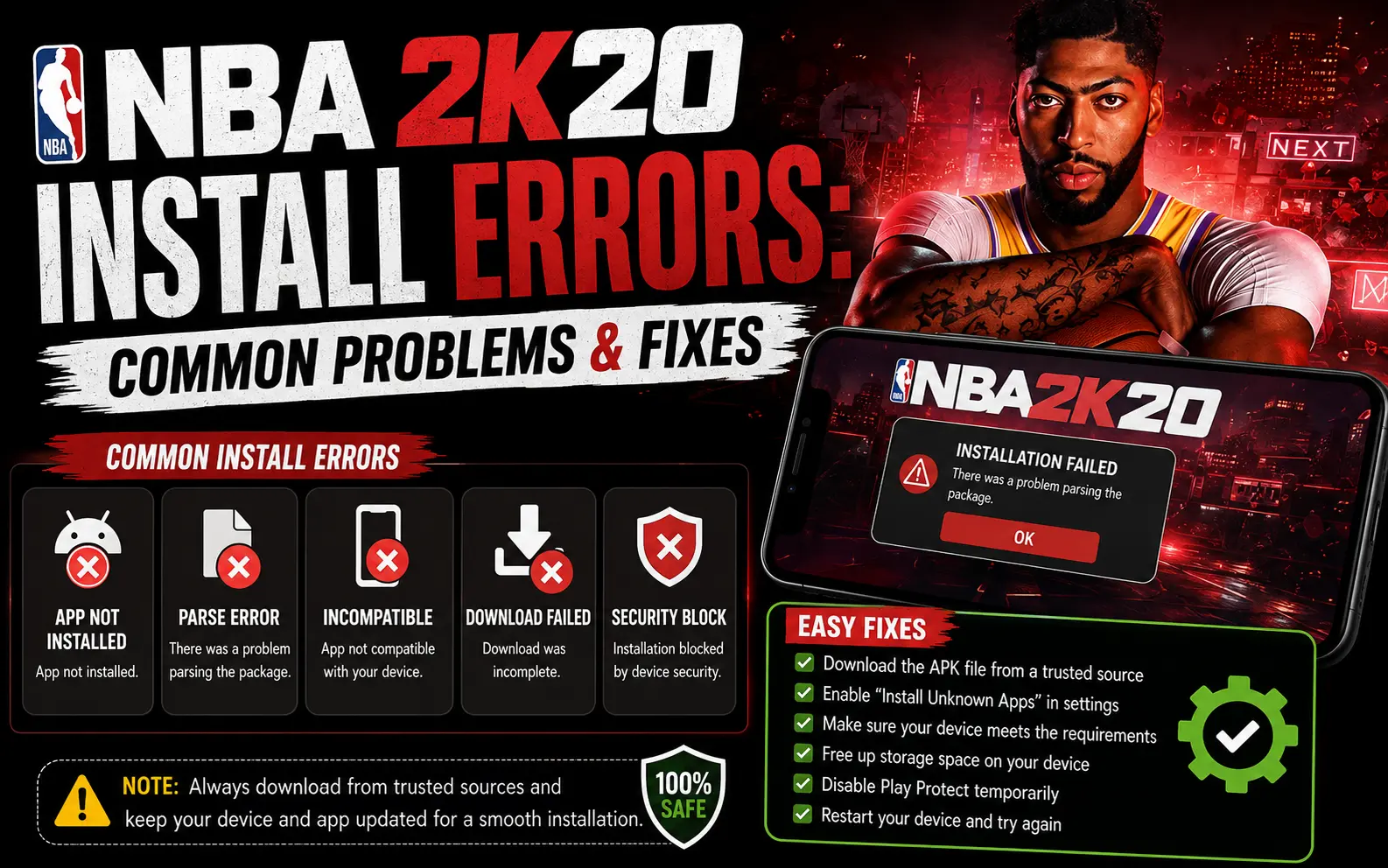
NBA 2K20 Install Errors: Common Problems & Fixes
You finally downloaded NBA 2K20 APK + OBB, you’re ready to hit the court, and then… nothing. A black screen. A “package appears to be invalid” message. Or the game just closes itself the second you tap Open. If that’s where you’re stuck right now, you’re not alone this is one of the most common issues Android users run into with large sports games like this one, and almost every single case can be fixed in a few minutes without redownloading anything.
We’ve gone through the most frequently reported installation problems for NBA 2K20 on Android, tested the usual fixes, and put together this guide so you don’t have to dig through forums or guess what’s wrong. Whether you’re on a newer phone or an older budget device, one of the fixes below should get you back on the court.
Why NBA 2K20 Installation Fails in the First Place
Before jumping into fixes, it helps to understand why this happens. NBA 2K20 isn’t a small app the OBB data file alone can be over a gigabyte, and it has to sit in the exact right folder for the game to recognize it. This is different from installing NBA 2K20 on PC or Windows, where one setup file handles everything (see our NBA 2K20 for PC guide). On Android, most installation failures come down to one of these:
Once you know which of these applies to you, the fix usually takes less than five minutes.
Fix 1: “OBB File Not Found” or “Data Not Found” Error
This is the single most common complaint, and it almost always means the OBB file isn’t sitting where the game expects it.
- Open your file manager and go to internal storage
- Navigate to (or create) this exact path: Android/obb/com.t2ksports.nba2k20and/
- Place the OBB file directly inside don’t extract it, don’t rename it, just drop it as-is
- Make sure it isn’t sitting inside a subfolder created automatically by your unzip app
If you downloaded the game through our NBA 2K20 APK + OBB download page, the installation steps listed there walk through this exact folder structure.
Fix 2: Black Screen or Stuck Loading Screen
If the game opens but never gets past a black or frozen loading screen, this is typically a caching issue rather than a broken installation an Android-specific quirk that iOS users installing NBA 2K20 for iOS don’t usually run into. Try these in order:
- Go to Settings > Apps > NBA 2K20 > Storage
- Tap Clear Cache (not Clear Data that would wipe your progress)
- Restart your phone once
- Reopen the game
This resolves the black screen issue in the majority of reported cases. If it doesn’t, check how much free storage your phone actually has left NBA 2K20 needs a decent buffer beyond its own file size to generate temporary data while loading, so a nearly full phone can cause the loading screen to hang indefinitely.
Fix 3: Game Crashes or Force-Closes on Launch
A crash immediately after opening is usually tied to one of two things: a corrupted download or a device that doesn’t meet the minimum requirements. First, verify your APK and OBB files fully downloaded an interrupted download is one of the most overlooked causes of a crash-on-launch. If the file size looks smaller than expected, redownload it on a stable connection rather than mobile data.
If the files are fine, check your device specs. Phones with less than 3GB of RAM tend to struggle with this game regardless of installation method, and that shows up as a crash rather than a slowdown. Our device compatibility guide breaks down exactly what specs you need before installing, which can save you a repeat download if your phone simply isn’t a match.
Fix 4: “App Not Installed” Error
This one almost always comes down to phone permissions rather than the file itself. Go to Settings > Security (or Apps > Special Access on newer Android versions) and make sure Install Unknown Apps is enabled for whichever app you’re using to open the APK your browser or your file manager. Without this permission turned on, Android blocks the install before it even starts, and the error message it shows can be vague enough to look like a corrupted file when it isn’t.
It’s also worth double-checking that you don’t have an older version of NBA 2K20 partially installed. If a previous install attempt failed halfway, uninstall whatever did get installed first, restart your phone, then try the fresh install again.
When None of These Fixes Work
If you’ve gone through all four fixes and you’re still stuck, the most likely explanation is a genuinely corrupted download rather than a device or settings issue. Delete both files completely, clear your browser’s download cache, and grab a fresh copy from our NBA 2K20 APK + OBB page rather than trying to repair the existing files. Re-downloading sounds like a step backward, but it resolves the handful of cases where nothing else works, since a partially corrupted file can pass basic checks but still fail during installation.
Frequently Asked Questions
Final Thoughts
Installation hiccups are frustrating, but they’re rarely a sign that something is permanently wrong with your device or the download itself. Nine times out of ten, it’s a folder path, a permission toggle, or a cache issue all things you can fix yourself in a couple of minutes. If you run into an error that isn’t covered here, drop the exact error message in the comments and we’ll help you track it down.